Labels

sports (42) football (35) fifa 2010 (20) soccer (20) world cup (19) fun (18) google (14) reviews (12) experiements (10) learnings (9) mac (8) software (8) cricket (5) video (5) friends (4) goal (4) keyboard (4) linux (4) music (4) tennis (4) bangalore (3) brazil (3) movie (3) mumbai attacks (3) tips (3) tricks (3) article (2) dharmendra (2) economictimes (2) health (2) heart attack (2) hindi (2) india (2) mavericks (2) osx (2) shortcuts (2) work (2) apsrtc (1) calendar (1) dad (1) maicon (1) responsibility (1) retrospection (1) virtualbox (1)

Wednesday, November 05, 2025

Mac : The Rupee Symbol

 It's amazing how one gets to learn through some accidental usage.

I was writing a blog post on my "Share2Learn" blog and wanted to quote some Python code using the "backtick" symbols. And pressing the "backtick" key ( just below the Escape key ) on my MacBook gave me a "₹" symbol !!!

I was surprised to see it !! My first worry was that something had gone wrong with my system and I had to some how find out another way of getting that "backtick" symbol. I tried a few key combinations and found that I could get it using Option + Backtick

Some Googling helped me learn that this is a new change done in Mac OS 26 ( Tahoe ). And this is done for the India Keyboard layout as shown in the image below

The new ABC - India Keyboard layout on Mac 26 ( Tahoe ) with an Indian Rupee symbol

Pressing the backtick now gives "₹" symbol when using "ABC - India" keyboard as your Input source.

Personally I find it quite odd that the key shows the "backtick" symbol on the physical keyboard where as it displays a "₹" symbol when pressed. But then, may be the people who did this mapping had a strong reason to do it ( and hopefully was not a random choice )

There are other ways to get a "₹" symbol on your MacBook though

  • ⬆ + 4 ---> $ ( Shift + 4 )
  • ⌥ + 4 ---> ₹ ( Option + 4 ) 
  • 🌐 + e and then search for "Indian Rupee Sign" ( 🌐 is also called the Function key )
If you have to display "₹" in your program then you can use the following Unicode Number

  • Unicode Value : 20B9
  • Unicode Name : INDIAN RUPEE SIGN

So, in Python code you could write code in either of the following 2 ways to display Indian Rupee Symbol

>>> print("\u20B9")

>>> print("\N{INDIAN RUPEE SIGN}"
₹ 
You can find more such useful symbols and their corresponding Unicode names at : https://www.unicode.org/charts/charindex.html#I
 

Wednesday, April 27, 2016

Targus Bluetooth Presenter for MAC

I had recently bought Targus Bluetooth Presenter, but had a tough time making it get recognised by my MacBook. Few learnings that might help those very few people who might have bought it [ Its no longer in production, if I am right ]


Targus BlueTooth Presenter


1> You need to press the "Power on" button for quite sometime for the device to switch on. [ Atleast 5 seconds ]

2> I had OSX 10.9 Mavericks and it detected my device automatically. But, try to switch on the device and scan for bluetooth devices on your Mac in various cycles. Once Mac detects it for the first time, it automatically detects it the next time you switch on your device.

3> The next most horrifying thing was that when I used the "Next" button on device while playing my keynote presentation, the slides moved to the "next slide" instead of moving to the "next transition" !!! I had to press the keyboard "Right Arrow" and "Left Arrow" to display the builds and animations on the slides. This completely defeated my purpose of using this device.

4> Thanks to "Jan Rychter", I was able to find a workable solution to this.

5> You need to install "Karabiner" [ formerly known as KeyRemap4Macbook" and follow the instructions given in Jan Rychter's blog article : https://jan.rychter.com/enblog/2011/3/8/making-your-targus-bluetooth-presenter-actually-usable.html

6> One problem I faced, was in identifying where the "private.xml" file was present. After reading the documentation for Karabiner at https://pqrs.org/osx/karabiner/document.html.en#privatexml I figured out out that this file can be accessed under the "Misc & Uninstall" tab.

Private.xml file for adding your own key Remappings

Saturday, May 24, 2014

Resizing VirtualBox Guest OS screen on MAC

Before we start, here are some terminologies to understand.


  • Host OS : Install VirtualBox on your MAC. For VirtualBox, MAC is now your host OS
  • Guest OS : On this VirtualBox, lets say we want to install Ubuntu 14.04. For VirtualBox, Ubuntu is now the Guest OS
When I first installed Ubuntu 14.04 as a Guest OS using VirtualBox on MAC, I was stuck with a peculiar problem. I call it peculiar, since I did not face this problem when installing OpenSuSE or Elementary OS as a Guest OS on the same VirtualBox. The problem was that, the size of the Ubuntu screen was stuck. Even if I changed the View to full screen, the screen size did not change !! It was something like in this image below.


No matter how much I move the corners to reize the window it always remained the same. I was stuck since I could not move around the application windows in Ubuntu as well !!! There is a fair amount of free desktop space that is left after that window is displayed in the image above. But, I had no access to it. I felt handicapped to do anything with that screen.

After some "googling" I found that there is a GuestOSExtension package that comes with VirtualBox that is supposed to fix this issue. But, unfortunately, I could not find this extension package for MAC. 

With some luck, I found an option under Display Menu that solved my problem. You need to run your Guest OS for this menu option to appear as in the below image


Just keep following the instructions as they pop up after choosing this option. If you get some errors as to no permissions or no file found, then look into the errors to figure out which file it was not able to open.

I had to manually go to finder,

  • Applications->VirtualBox, 
  • Control + click and choose "Show Package contents"
  • Double click Contents->MacOS->VBoxGuestAdditions.iso
You will see some more popups coming in your Ubuntu VirtualBox. Follow them. Restart your Ubuntu VirtualBox and your resizing problem should be solved.

It solved the problem for me and I downloaded variety Wallpaper just to see that small clock on the bottom of the wallpaper :)


MAC : Keyboard shortcut for Tags

If you love using keyboard shortcuts and want to use Tags for your MAC files, this simple tip comes as a life saver.


Steps :

  1. Open System Preferences -> Keyboard -> Shortcuts
  2. Select App Shortcuts on the left pane
  3. Click on + to add a new shortcut
  4. Select "Finder" as Application
  5. For Menu Title, type in the following keys : Tags⌥;
    1. Typing option + ; gives you the ellipsis.
  6. Keyboard Shortcut : anything you wish to use to launch Tags [ ex : ⌘⌃ T ]
  7. Open Finder and select the file or folder that you want to tag, and hit your keyboard shortcut
More details can be found in this article : http://www.macworld.com/article/2158081/use-the-finders-tags-feature-from-the-keyboard.html


Saturday, May 17, 2014

Sign your documents in MAC


Wouldn't you love to sign each and every document of yours with a special personal signature ?

Doing this is a piece of cake on your Mac Book Pro with the powerful and helpful Preview Application.

Open your image of PDF document in Preview. Select Tools->Annotate->Signature->"Capture Signature ..."

Then, sign on an empty page and show it to your Mac Book Pro's FaceTime Camera. Align your signature to that Blue Line you see on the screen. Once you like the preview of the captured signature, click on Accept [ I had to use the help of my wife to hold the paper in position while I clicked on the Accept button :-) ]

Go back to your document that you have opened in Preview. Click on View->"Show Edit Toolbar". You will then see a small  "Sign" button. If you don't see it, then select Tools->Annotate->Signature, and you will see all your accepted signatures there. Chose the one you want and place it anywhere on the document. Adjust it and once you are happy, save the document. And you have your document signed with your own personal signature. Enjoy !!!

Saturday, May 10, 2014

MAC : Keyboard viewer

For my earlier post on Switching between windows in MAC, I pasted an image to depict the key strokes to use for switching between windows of the same application on MAC. If you ever wish to publish something like this, I am sure you will have to hunt for some keyboard images. Well, that's not required. You can use the inbuilt keyboard viewed of MAC and create an image out of it using screen captures. More on screen captures later. For now, follow these simple steps to set up the keyboard viewer.


  • Open System Preferences application and click on Language and Region


  • Click on Keyboard Preferences button that you will find towards the bottom of this window

  • Move to the Input Sources tab and select "Show input menu in menu bar"


  • Once you do this, you will see a new item added to your menu bar. Select the option of "Show Keyboard Viewer" from its drop down menu

  • And behold ! You get your keyboard displayed on your screen. You can also use it to type text in any application. And of course, it also highlights the keys that you press. 

Another advantage of this keyboard viewer, is that you get to learn the symbols for various keys on MAC, like :

  •   ⌃   : Corresponds to "Control" key
  •  ⌥   : Corresponds to "Option" key
  •  ⌘   : Corresponds to "Command" key

Friday, May 09, 2014

MAC : Switching between windows

When it comes to using a computer, I am a big fan of keyboard shortcuts. To move the focus from one window to another on a MAC, I found that you could use :

+ [ Command + Tab ]

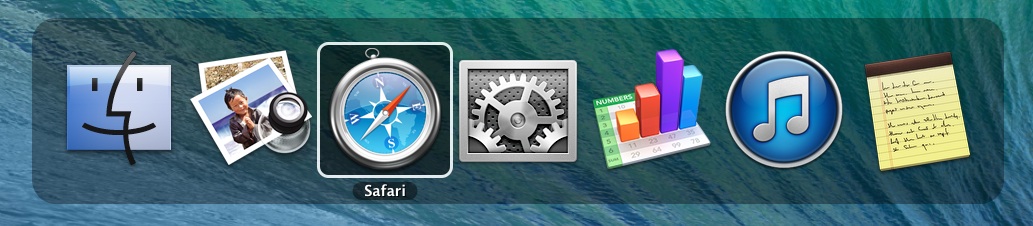
key combination to switch between different "application" windows. If your current focus is on Safari and you want to move to another application like, Numbers, you would use "Command + Tab" to switch between them. While it does that, you also get to see a nice list of applications that you can possibly switch between. Something like this image below.


Then, one day, I had opened 2 windows of Safari and when I wanted to switch between those 2 windows, I found that "Command + Tab" key combination does not help me for this. It only helps to switch between windows of different applications. To move between windows of the same application, you had to use another set of keys :

` [ Command + Back-tick ]

The back-tick is on the key which has a ~ on it. Like the one on this image below :